
After installation, the next step is setting up Jira Remote Site settings for Salesforce and Jira Instance.
Configure Remote Site Settings
-
Navigate to the ‘Setup’ page from your Salesforce instance. In the ‘Quick Find’ box, search for ‘Remote Site Settings’ and click on it from the search results.
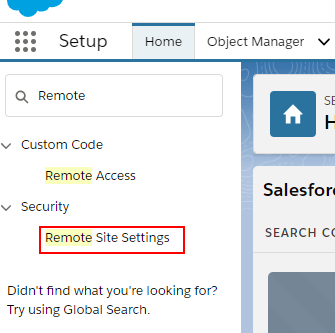
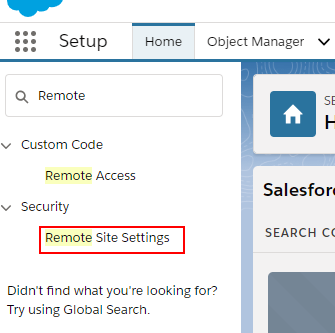
- Click ‘New Remote Site’ to add the remote site.


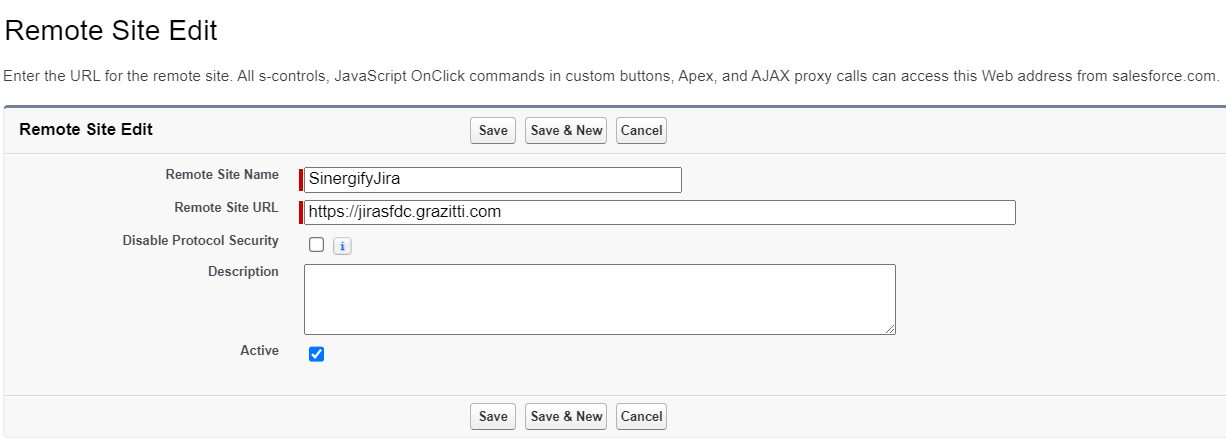
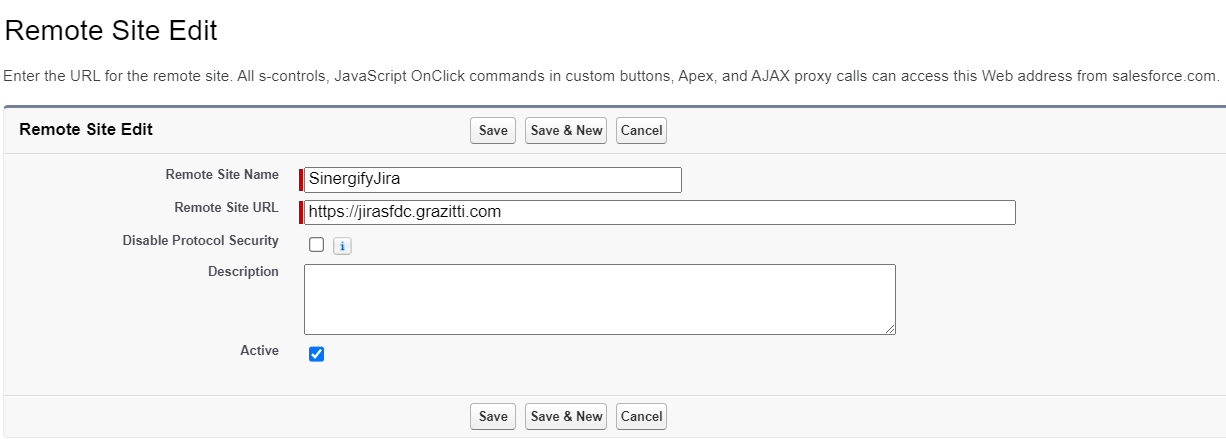
Create a Remote Site for the Jira Instance
- In this step, you will create a Remote Site for your Jira instance to establish a secure connection between Salesforce and Jira.
- Remote Site Name: Enter a descriptive name for the Jira Remote Site.
-
Remote Site URL: This URL is crucial for enabling communication between Salesforce and Jira.
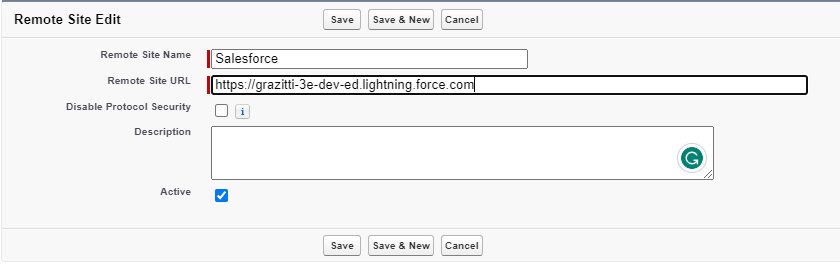
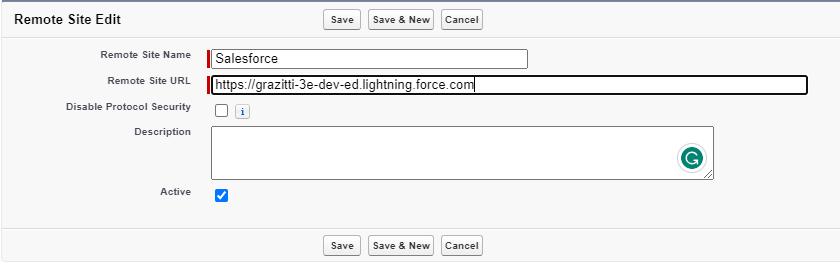
Create a Remote Site for the Salesforce Instance
- In this step, you will create another remote site for your Salesforce instance to facilitate secure communication, authentication, and seamless integration within the Salesforce environment.
- Remote Site Name: Provide a meaningful name for the Salesforce Remote Site.
-
Remote Site URL: Enter the URL of your Salesforce instance.
Token Generation
- Log into your Atlassian Account
- Open your browser and go to the Atlassian login page.
- Enter your credentials to log in.
- Navigate to Account Settings
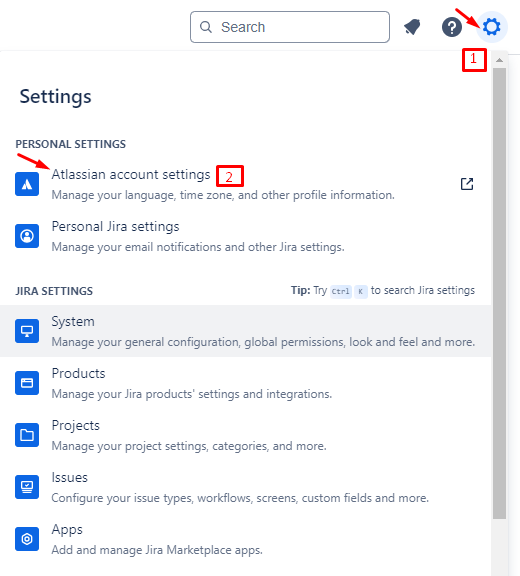
- Once logged in, click on the Gear icon.
- Select Account Settings from the menu.
- Access Security Settings:
- In the Account Settings page, look for the Security section and click on it.
- Go below and click on the Create and Manage API tokens.
- Create a New API Token:
- A new page will open. Click on the Create API token button.
- Enter Token Details:
- A pop-up will appear. Give your API token a name that describes what it does.
-
Select an expiration date for the API token.
a. Token expiration is 1 to 365 days.
- Copy the Generated Token:
- A token will be generated. Make sure you copy it immediately as it will not be displayed again.
- Go to the Sinergify Admin setting tab, and enter the below details.
- Jira Name: Provide your Jira instance Name.
- Jira URL: Provide your Jira instance URL.
- Username: Enter the email address in the username.
- Password: Paste the Generated API token password created in the above step.
- Personal Access Token: Personal Access Tokens (PATs) provide a secure, manageable way to Authenticate JIRA with Sinergify without exposing user password.
Note:
PAT feature is only for Jira Server and DC versions and hence when cloud is selected this toggle will be unavailable.
https://confluence.atlassian.com/enterprise/using-personal-access-tokens-1026032365.html
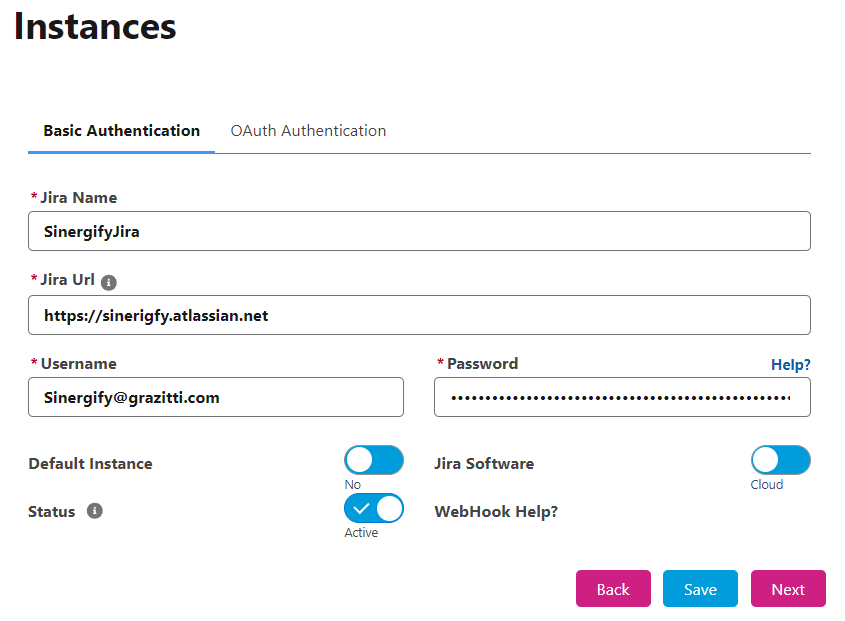
- Once all the details are added click Save, Please ensure the ‘Status’ is set to Active. If it is not, enable the toggle button.
Comments
1 comment
Reading the article
Please sign in to leave a comment.